Home Assignment Template
Creating a Home Assignment Template
⚠️ Important! The home assignment must be attached to the class for which students are expected to complete it.
- Go to the Assignments section.
- Click the Templates button on the right.

Fig. 1. “Assignments” section - On the Assignment Templates page, click Add on the right.

Fig. 2. “Add template” - Fill in the fields in the home assignment template form. Required fields are "Topic" and "Task".
If needed, add text formatting in the "Task" field (styles using the formatting toolbar/editor, switching between the Markdown/WYSIWYG tabs).
At the bottom of the text field, there are two input mode switches:
Markdown is a way of formatting text using simple symbols. For example, bold or # Heading. The text looks like plain code, and formatting is applied only after saving or previewing. Suitable for those who prefer fast, keyboard-based text editing.
WYSIWYG (What You See Is What You Get - “what you see is what you get”) is a familiar mode, like in Word or Google Docs. You immediately see how the text will look: bold appears bold, headings appear large. Recommended for most teachers.
You can also add files, presentations, and select a prepared quiz.
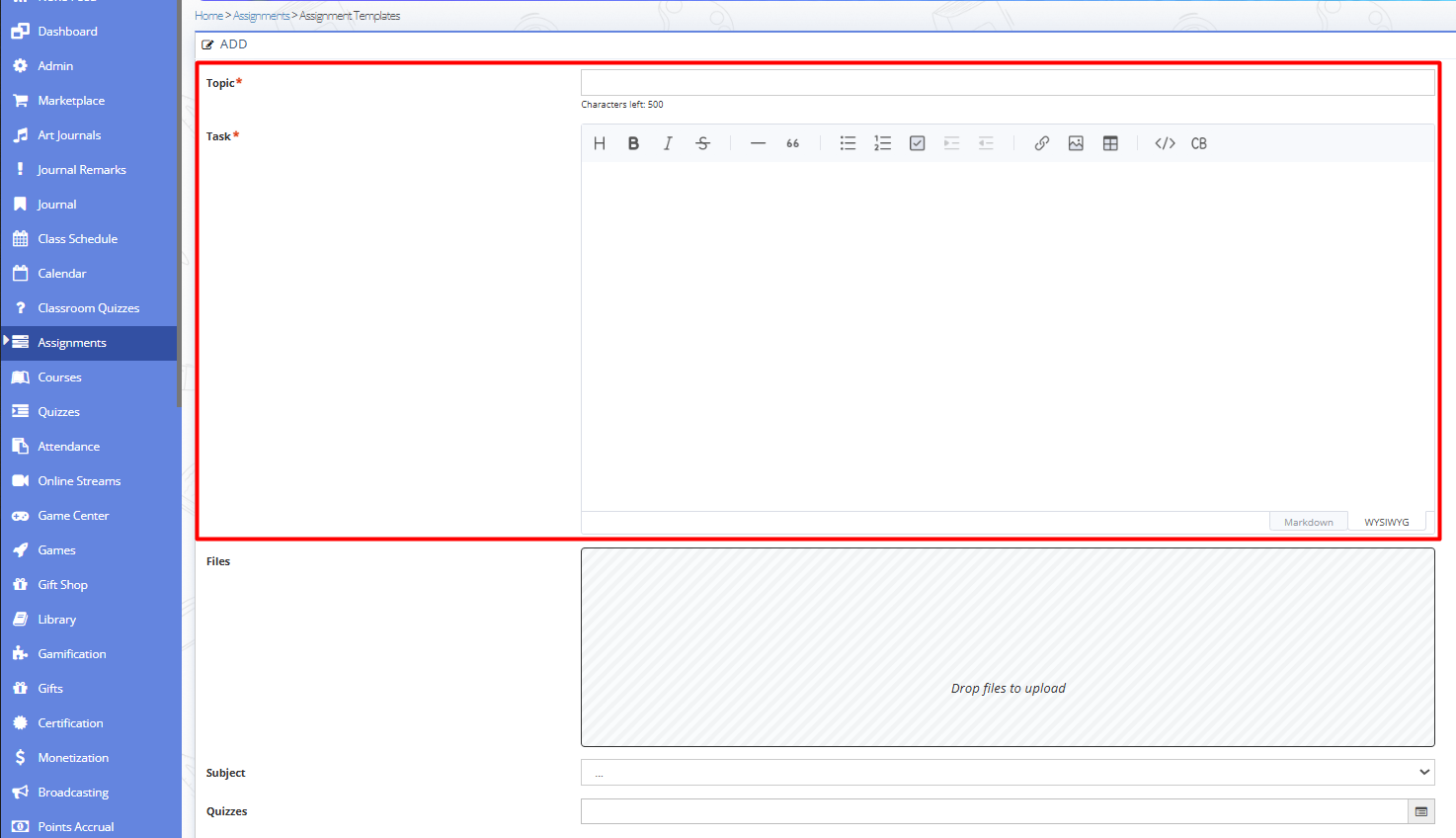
Fig. 3. Home assignment template form - Click Submit.
- To use the created home assignment template, click Add in the Assignments section.
- In the new home assignment form, select the required template.
- After selecting the template, the Task, Files, Subject, and Quizzes fields will be filled in automatically.


